
Turn Your Old iMac into a Second Display — The Complete DuoScreen Guide
A Target Display Mode alternative. Bring a 2017-or-later iMac back to life as a 5K second monitor for your MacBook — install, connect, and everyday use.
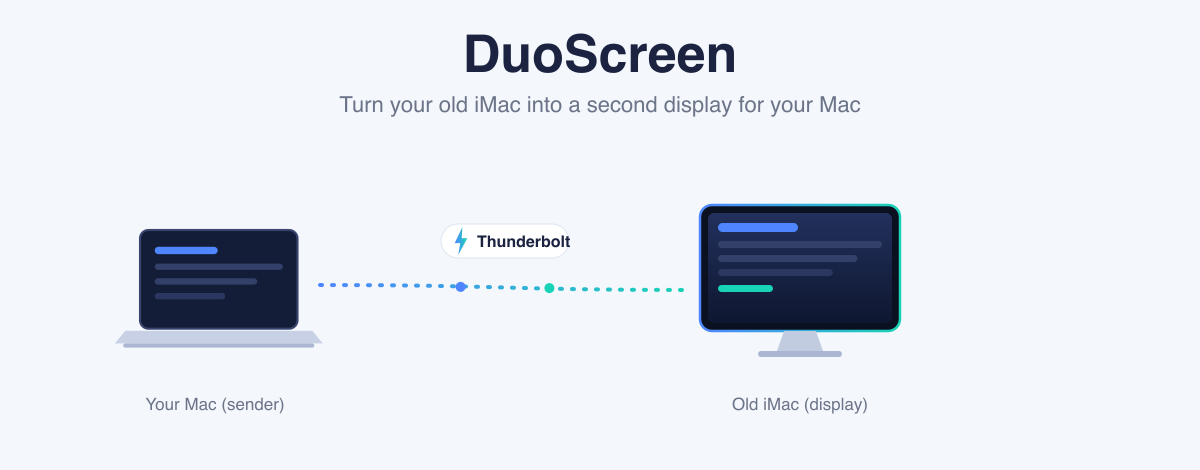
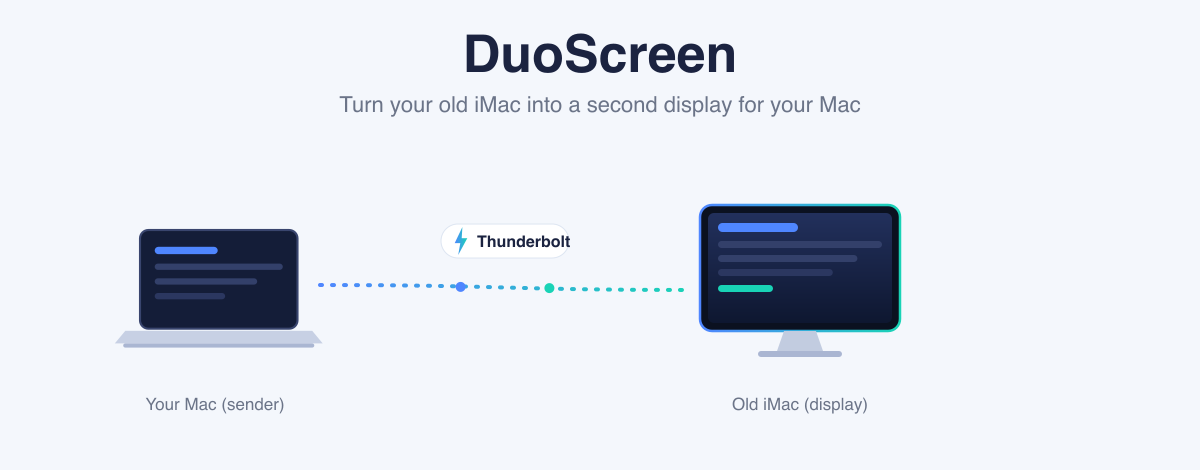
Got an old iMac gathering dust? Apple's Target Display Mode disappeared after the 2014 models — but with DuoScreen you can bring a 2017-or-later iMac back to life as a second monitor for your MacBook (or any modern Mac). Here's the full walkthrough, from install to everyday use.
What is DuoScreen?
DuoScreen is a macOS app that links two Macs so one (the iMac) becomes an external, extended display for the other (your MacBook). It streams the screen in real time using low-latency HEVC — up to 5K over a Thunderbolt cable, or wirelessly over Wi‑Fi. System audio plays from the iMac, and it reconnects on its own if the link drops.
What you need
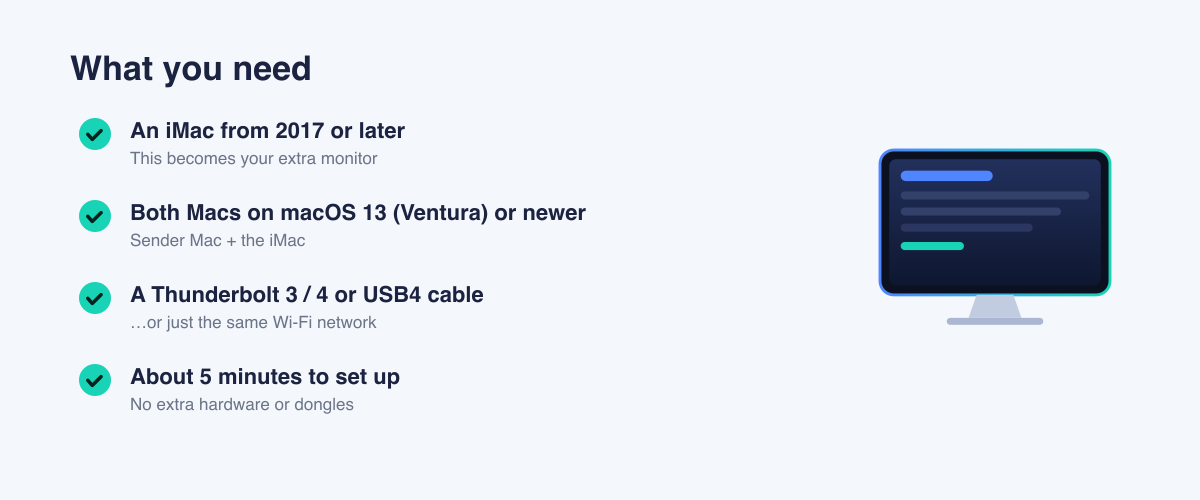
- An iMac from 2017 or later — this becomes the display. (Needs a Thunderbolt 3 / USB‑C port.)
- Both Macs on macOS 13 (Ventura) or newer — the sender Mac and the iMac.
- A Thunderbolt 3 / 4 or USB4 cable for the best quality and lowest latency — or just the same Wi‑Fi. (A charge‑only cable won't work.)
- About 5 minutes — no dongles or extra hardware.
Set up in 3 steps
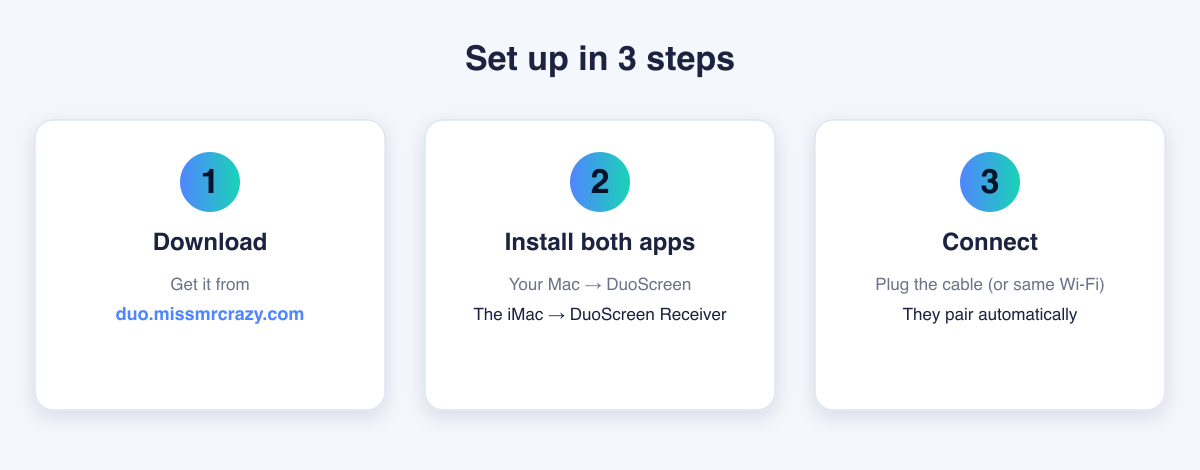
1. Download
Grab the DMG from https://duo.missmrcrazy.com. There's a 7‑day free trial, so you can try it fully before buying.
2. Install both apps
The DMG contains two apps. Put “DuoScreen” on the sender Mac (your MacBook) and “DuoScreen Receiver” on the iMac that will act as the display. Both live in the menu bar (the 🖥️ icon at the top).
3. Connect
Plug a Thunderbolt cable between the two Macs (recommended), or just keep them on the same Wi‑Fi — they find each other and connect automatically. When the iMac turns into your MacBook's extended screen, you're done.
On first launch, the MacBook may ask for Screen Recording permission and the iMac for Accessibility. Allow them when prompted.
Two ways to connect — Thunderbolt vs Wi‑Fi
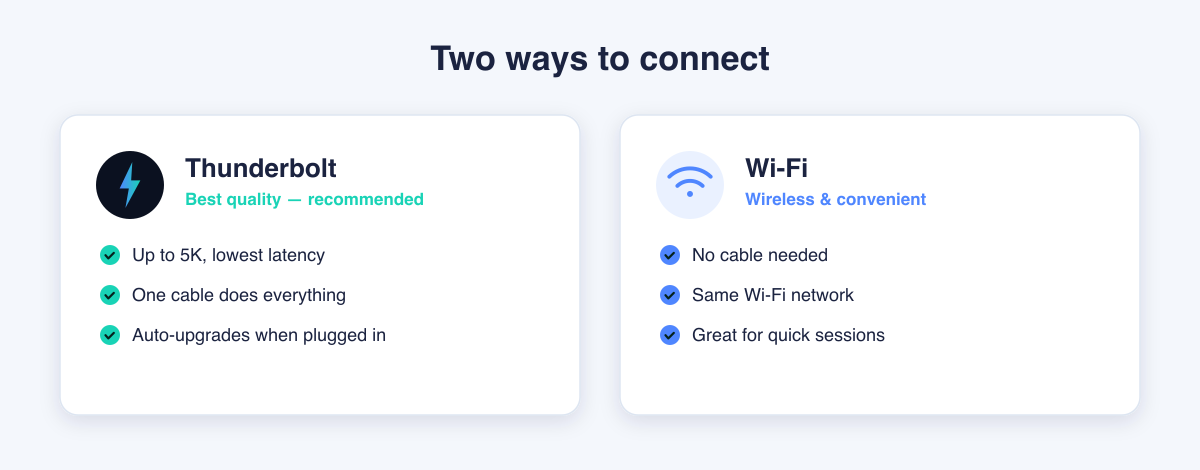
Thunderbolt (recommended): one cable, up to 5K, the lowest latency. Even if you're on Wi‑Fi, plugging in the cable auto‑upgrades the link to Thunderbolt. When the menu shows ⚡TB, you're on Thunderbolt.
Wi‑Fi: no cable — just the same network. Handy for quick sessions or when you don't have a cable. (Slightly higher latency than Thunderbolt.)
Extend or Mirror
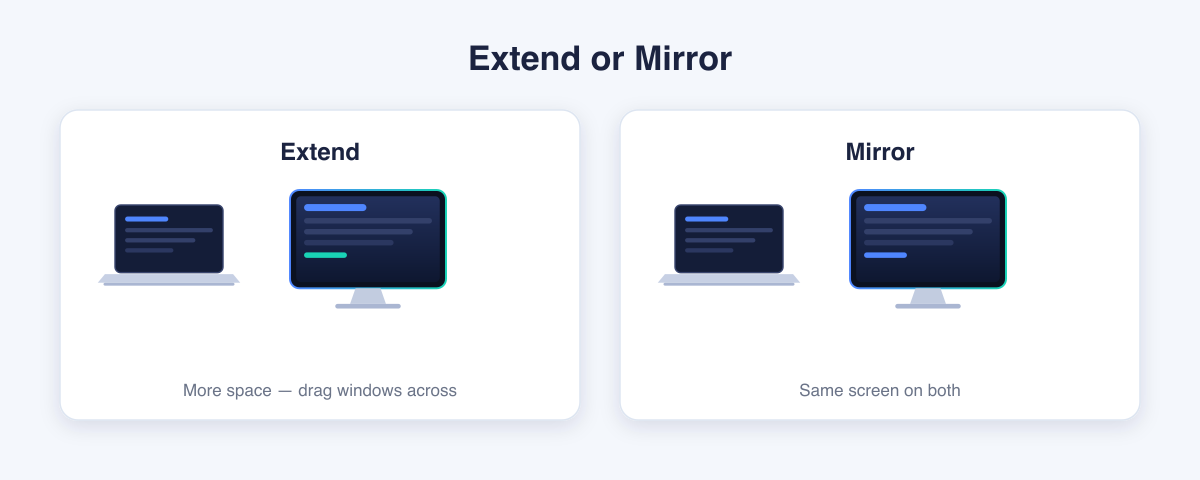
- Extend — the MacBook and iMac become separate screens. Drag windows over to the iMac for more room: timelines and panels for video editing, reference material, chat windows, and more.
- Mirror — both screens show the same thing. Great for presentations and demos.
From the DuoScreen menu-bar icon you can switch modes and set the iMac's position (left / right / above / below).
Everyday tips
- Audio: once connected, system sound plays from the iMac's speakers. The MacBook auto‑mutes (adjustable), and your MacBook's volume keys control the iMac's volume.
- Auto‑reconnect: unplug the cable or let it sleep — it reconnects by itself when you're back. You can also use Reconnect / Restart extension in the menu.
- Screensaver: recent versions dismiss the iMac's screensaver automatically on reconnect (unless it's password‑locked). If it's locked, wake the iMac yourself.
- Screenshots: you can save the extended iMac screen straight to PNG from the app.
- Updates: a red dot appears on the menu‑bar icon when a new version is out — click to update.
Standard vs Pro
Standard covers the core extend/mirror display. Pro adds extras such as file sharing between the two Macs. Both are a 7‑day free trial + one‑time purchase (no subscription), and a single license activates on up to 2 Macs.
Troubleshooting
- Won't connect — make sure DuoScreen Receiver is running on the iMac (🖥️ in its menu bar) and both Macs share the same cable/network. The cable must be a data Thunderbolt cable (not charge‑only).
- Shows “Ethernet” — recent versions fixed the Thunderbolt labeling. Update and reconnect, and it shows ⚡TB correctly.
- No extended screen — if the iMac is locked or on a screensaver, wake it first, then use Restart extension in the menu.
Wrapping up
If you have an iMac that's too good to throw away, DuoScreen turns it into a plug‑and‑go 5K second monitor. Before buying a new display, try the 7‑day free trial and see if it fits your workflow.